Input Data: prepare, inspect and correct a draft
Open Input Data, select the exact draft/scenario, then inspect equipment, declare sources and save reviewed corrections. Manual edits and AI use the same detached draft; neither silently saves into Original. Input readiness is not a passing study, manufacturer verification or engineering approval.
Open and understand the workspace
Use the permanent Input Data rail icon, command search or /inputs in chat. Opening it does not send an AI request. The header names the active draft and scenario. Build and Plan describe AI permissions, not manual editing. Frozen and Historical receipts remain read-only. Use Details for the exact candidate ID, archive hash and scope; these identifiers are intentionally not the main equipment columns.
The four tabs follow your work:
- Equipment: inspect equipment, its connections and selected parameters;
Pending inputs keeps incomplete or unsupported intake visible.
- Parameters: work across registered fields, units, declared basis and sources.
- Sources: attach documents, inspect extraction and map table columns.
- Review: inspect findings, study prerequisites, required setup, changes and export.
Search and filters apply to the current section. Switching tabs preserves the selection, scroll position, filters and unsaved values. Help or F1 opens this offline guide. There is no inference charge for browsing or manual editing.
Equipment
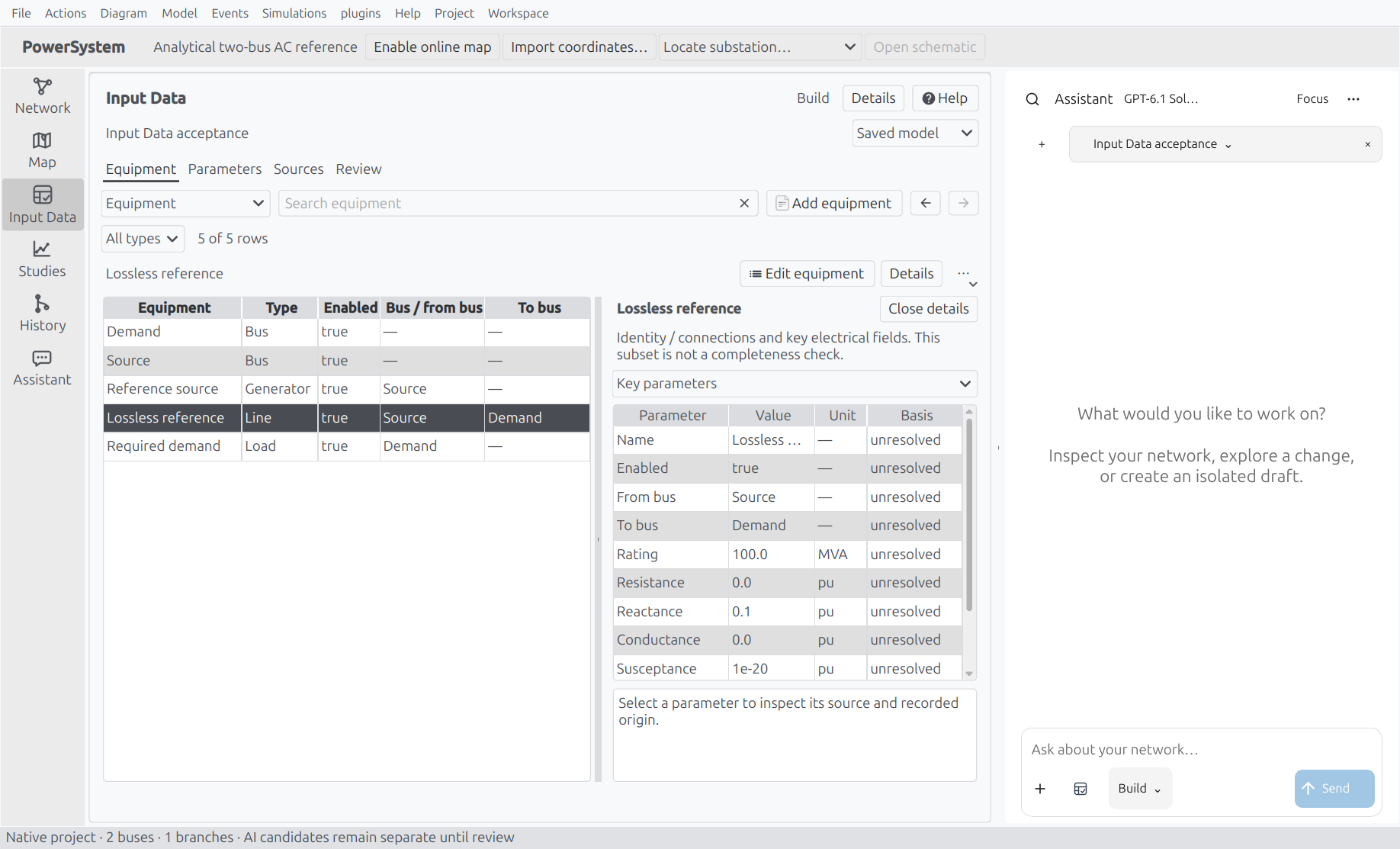
Bundled instructional reference; the live interface may use newer controls. This illustration is not project evidence.
Select a row to see its registered parameters. At a wide dock they appear beside the schedule; at a narrow dock choose Details, then Back to return. Connections use equipment names; duplicate names retain an identity suffix. Hover or open Details for the exact ID. A connection change edits electrical topology, not just a display label. Equipment type and stable identity are not editable labels.
Key parameters is a navigation subset from the registered critical-field catalogue, not a list of every input required for your study. Choose All registered fields when needed. An unresolved declaration can coexist with a numeric native value: the existence of that value does not prove its origin. The declaration count is not an equipment approval.
Double-click or use F2 to edit; Enter commits the cell to pending changes, not to the saved project. Numeric, enum, enabled-state and connection controls use the native schema. Select a parameter to read its full source and recorded origin. Edit equipment opens the existing native editor on a private copy of this exact draft/scenario. Keep supported edits as pending corrections, then Save. Original's unsaved editor state and save target remain untouched. Unsupported native edits require their supported workflow and remain available for recovery.
Use the selection menu for Ask AI about selection or Remove equipment. Asking prepares a message for explicit Send. Removal requires confirmation and never silently cascades through connected devices. Undo/Redo use this draft and scenario only, pending edits first and saved native transactions afterward.
Sources and missing inputs
Sources → Attach source accepts text, pasted/retained CSV tables, XLSX, PDF and supported images. Existing native-project imports keep their existing path. Select the file and View source. Review the retained SHA-256, spreadsheet sheet/cell or PDF page reference. Source previews are bounded; use their page controls rather than assuming the first page represents the whole document.
Extraction does not execute spreadsheet macros, external links or embedded instructions. PDFs and images may need visual inspection; unreadable values, ambiguous mappings and conflicting documents stay unresolved. Oversized or malformed files fail with an actionable error, not partial native publication. No document is a manufacturer qualification merely because AI extracted it.
Map columns manually stages the visible source page. Choose explicit fields, units and exact terminal identities; check duplicate records before proceeding. The same intake form is available from Equipment → Add equipment, with required values blank rather than disguised constructor defaults.
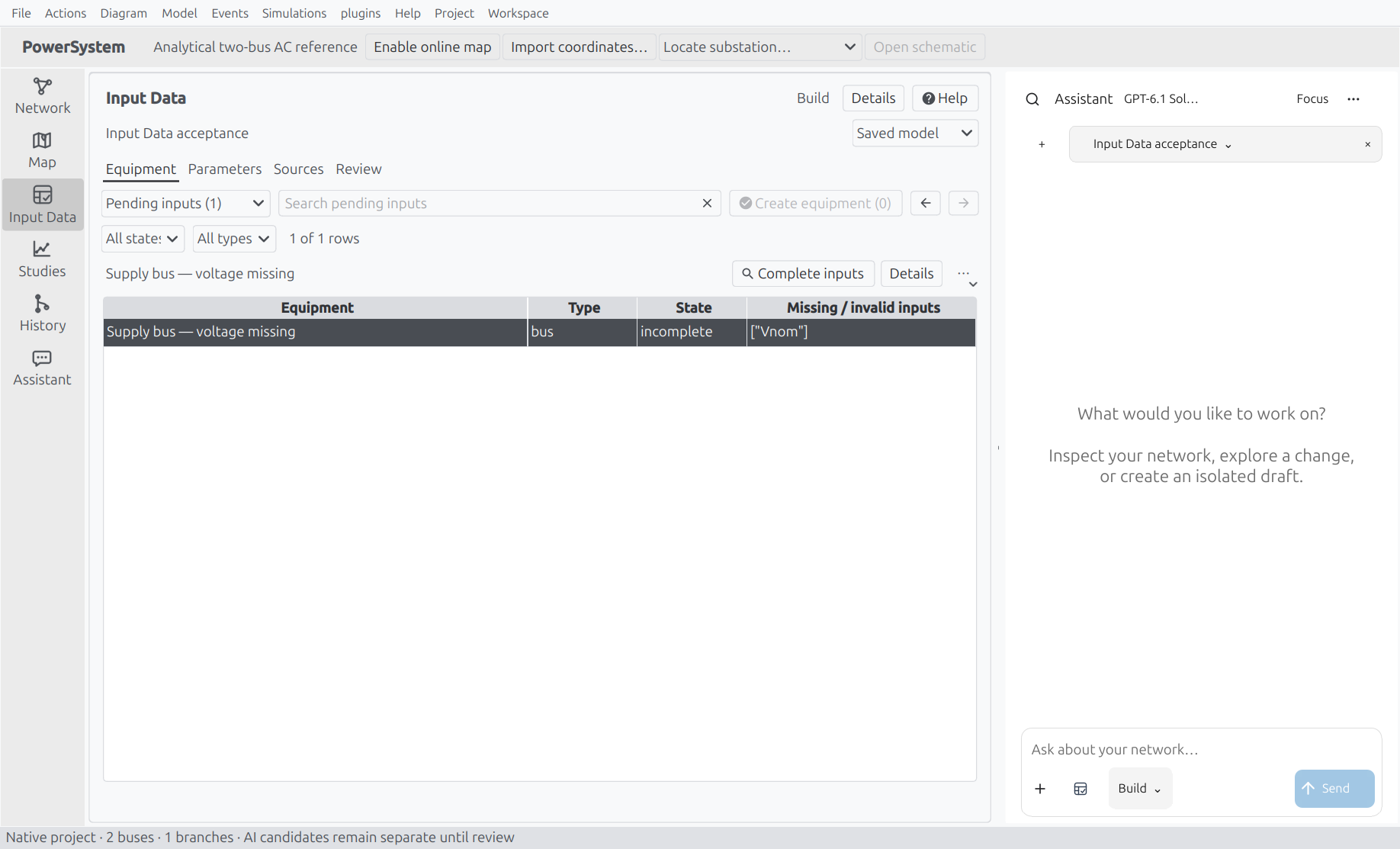
Bundled instructional reference; the live interface may use newer controls. This illustration is not project evidence.
Open Equipment → Pending inputs to see what is missing or unsupported. Complete inputs reopens the selected form. The creation button reports the eligible count; it materializes only complete supported rows through the bounded native transaction. Incomplete rows stay in project metadata. Unsupported types are not substituted with superficially similar equipment.
Worked example: document to saved equipment
1. Open a blank or existing project and Input Data. In chat describe the intended network and attach your source; explicitly Send to ask AI to prepare a draft. 2. Answer focused questions about missing voltage, units, equipment identity or connectivity. Do not accept guessed data just to remove a warning. 3. Review Sources, the exact locators, and Pending inputs. For example, an explicit 13,800 V source may be converted to 13.8 kV while retaining both declarations. A bare “13.8” with no unit remains a question. 4. In Equipment, select the resulting bus or line. Use the adjacent fields, Parameters, or Edit equipment to correct a supported value manually. 5. Inspect the changed cells and Review changes. Save changes pauses only this conversation, reconciles its in-flight work and saves against the exact revision. It does not Apply the candidate to Original. 6. If a conflict appears, choose explicitly between your correction and the newer value. Review the result and Save again. Nothing is silently overwritten. 7. After a successful manual save, Continue AI starts a normal AI request with the human-change summary and current draft. If another message is unsent, its text is preserved; review the appended context and explicitly Send. 8. In Review, inspect refreshed findings and exclusions, then Export review. Reopen the saved native draft and confirm its equipment and pending intake.
Units, sources and unknown values
Values, units, basis and source references are separate editable declarations. Compatible conversions are explicit and retain the supplied value/unit. Invalid or ambiguous conversions are rejected, not guessed. Recorded origin distinguishes AI preparation, human entry/correction and unavailable older information. A human correction invalidates an incompatible old source declaration; historical sources remain inspectable but must not appear to support the new value.
Ctrl+V pastes a bounded rectangle into editable cells. The whole rectangle is validated before any pending value changes. Read-only fields, invalid references and oversized pastes leave the saved draft unchanged. Use source mapping for a whole incoming spreadsheet; CSV correction import remains an advanced option.
Save, recovery and AI availability
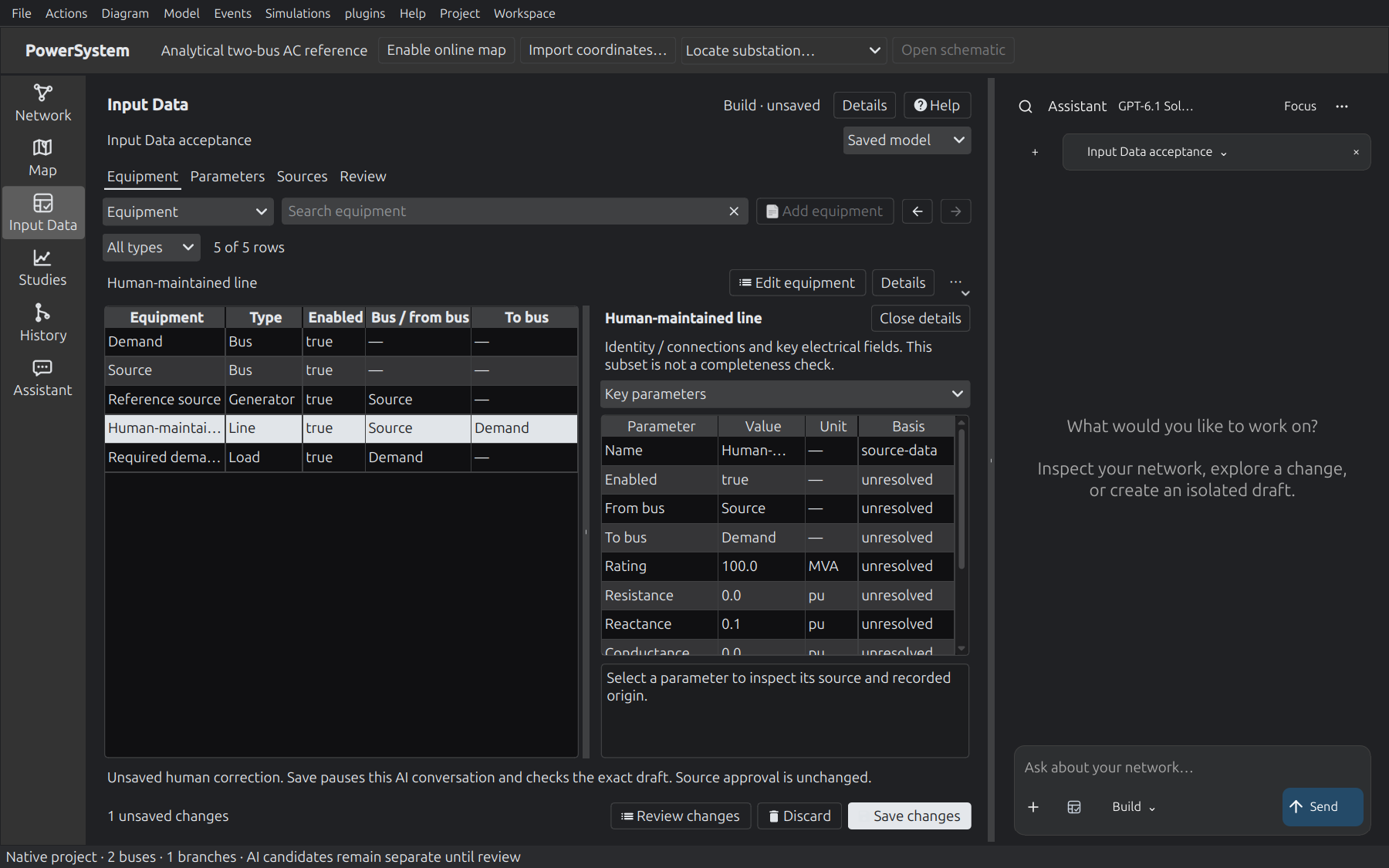
Bundled instructional reference; the live interface may use newer controls. This illustration is not project evidence.
The save strip appears only for pending changes or a saved manual handover. Discard asks before removing unsaved corrections. While saving, the message reflects the real transaction; a slow AI cancellation does not throw away edits. Edits made during a save acknowledgement remain pending for another Save.
Human editing works in an unfrozen exact draft even while AI is in Plan. There is no need to change the AI mode or send a message. AI Plan tools remain read-only. Frozen and historical receipts stay read-only. Open current draft leaves history explicitly.
If AI authentication, the provider or runtime is unavailable, keep working manually. No fallback inference starts automatically. Unsaved recovery is scoped to the draft/scenario; reopening restores corrections without replaying AI actions. Changed sources produce conflicts rather than silent replacement. Switching conversations rejects late callbacks from the previous context.
Review and export
Review separates input findings from study prerequisites and required setup. Refresh findings runs deterministic inspection, not paid AI. Old results keep their original artifact/scenario and cannot stand in for current validation.
The evidence ZIP includes readable schedules, unresolved findings, assumptions, source references, native changes and validation identity. Original source files are excluded unless you explicitly agree to include them. Retained-result export replays that exact receipt, not a fresh calculation. Input-stage evidence does not claim solver convergence, engineering acceptance or completion of the entire MVP.
Intake readiness and checked materialization
The readiness document combines native equipment and retained pending declarations. Select a row to inspect its electrical inputs, exact connection IDs, missing facts and source basis. Correct declared inputs opens the existing native intake editor; Open native equipment editor edits the selected modeled equipment. Choose a study profile to inspect its own exclusions and setup requirements. Missing short-circuit sequence data is not a blanket load-flow or equipment- creation blocker. Input completeness still does not imply solver admission.
Check only complete supported pending rows, then choose Materialize checked. The checked IDs are one compare-and-publish native transaction: an invalid row, missing selected bus dependency, stale archive or failed validation publishes nothing. Unchecked and incomplete rows remain retained. Save or discard pending native corrections before this operation; they are never silently replaced.
Retained document reconciliation
In Sources, retain a CSV/TSV, XLSX, PDF, image or text file, then choose Open and extract. The viewer shows the retained page, actual sheet cells or source text. Page/sheet/row navigation stays bound to that file's SHA256. Tables are paginated; the extracted-value inspector pages through 500 cells/lines at a time. Run local OCR is an explicit local Tesseract operation for a selected image or PDF page; it uses the existing network-isolated worker, 512 MiB resident-memory limit and 60-second outer deadline. OCR is unverified; unreadable facts stay unresolved. If local OCR is unavailable, provide a readable source instead.
Select a cell or text line, then choose exact native equipment and a supported parameter. Declare the actual source unit (blank only for unitless values), review the value and inspect the converted/native values. Compatible voltage, power, current and length scale conversions are supported; incompatible units or missing impedance bases are rejected rather than inferred. To replace a conflicting native value, explicitly check Replace current native value and supply a review reason. Add the reviewed mapping; Accept reviewed changes then publishes at most 30 mappings atomically against the displayed revision.
History is retained inside the native project, with original/reviewed/converted values, source hash and locator, units, previous value, actor and review comment. Reverse acceptance restores the retained previous value only if this is the latest accepted change and neither its value nor provenance was superseded. Refresh/review newer corrections rather than forcing a stale inverse. Acceptance and reversal are human dispositions, not source certification. Human review can publish in an unfrozen exact draft in either AI mode. Frozen and historical documents remain read-only; no AI request starts automatically.
D61 — map and recover a supplied table
1. Retain a CSV/XLSX source and inspect its exact page/sheet. Select Map imported inputs. Native projects and RAW33 conversion keep their existing separate import paths. 2. Choose the equipment/name columns, supplied parameter columns and declared units. For a terminal choose its supplied bus column, or an exact native/staged bus. Only a unique exact name/ID resolves; ambiguous or unknown references remain unresolved. Exact row relationships permits an explicit per-row choice. Names never merge equipment automatically. 3. Validate object mappings shows original source row numbers, conversions, missing values, formulas and duplicate-name findings. Formula cells are never executed. Leave row selection blank for the retained page, or enter original row numbers separated by commas; filters do not change that selection. At most 100 rows stage in one transaction. 4. Save mapping draft retains columns, units, row selections and exact relationships for this project/scenario. Resume saved import mapping (also available from the import picker) re-extracts the immutable retained source before restoring your choices. An older artifact requires Review current draft for mapping and another explicit Stage; nothing is replayed. Discard mapping draft removes only that pending mapping, not its source or native equipment. 5. Stage mapped rows retains complete and incomplete declarations. Native creation/materialization is a separate checked action: select complete supported rows in Input Data, review their source/terminals, then create explicitly. Failure preserves the mapping document; no partial native publication or automatic retry. Unknown facts, unsupported equipment and missing source files remain actionable failures. Original and human Apply remain separate.